Full-text fetch
RSS feeds often include only a summary, so AURA extracts just the article text from the article's page. It strips ads, menus, related-article boxes, and other clutter, and shows the headline, text, and images in AURA's own text size and colors.
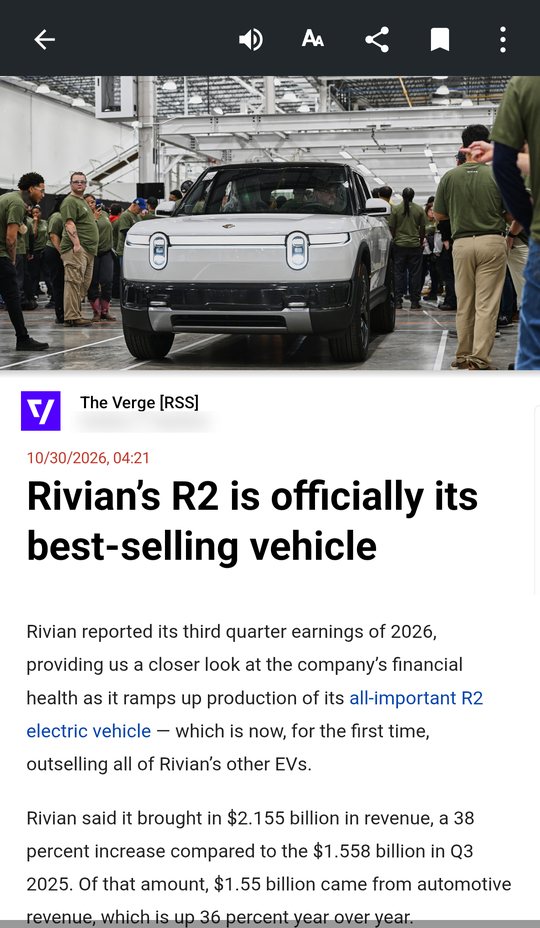
When AURA fetches full text
- Prefetch — On Wi-Fi, while AURA is closed, AURA keeps the full text of saved articles and new articles (for 48 hours after they arrive). Automatic prefetch uses up to 50 MB a day (this limit doesn't apply while your device is charging on Wi-Fi). See Read offline
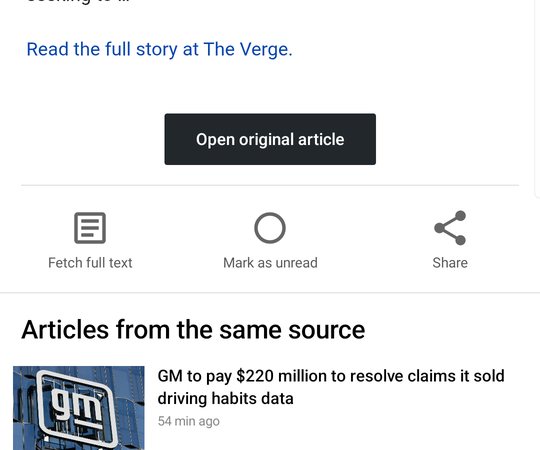
- Fetch full text — The button at the very bottom of the article screen. Tap it to fetch right away (if it's already fetched, it shows Full text (fetched))
Below the article you also see Open original article (opens the original page in your browser) and a list of Articles from the same source.
Pages built with JavaScript
Some sites draw the article text with JavaScript after the page opens. Without help, the text would look empty, so AURA renders the page on an invisible screen used only to get the text, then extracts it. This isn't set up site by site, so it works broadly on sites built this way.
- While rendering, AURA doesn't load images, sound, video, or fonts, and gives up if the page doesn't render after a while
- Prefetch uses this method for only a few articles per refresh. When you tap Fetch full text, AURA fetches regardless of the count
- The screen that shows the fetched text doesn't run JavaScript (for safety)
Multi-page articles
Articles split into pages with “Read more” are joined and shown as one. The top of the article shows “Showing all N pages of the article joined together.” If AURA couldn't fetch the later pages, it shows “Showing up to page N (couldn't fetch the following pages).” For an article where AURA previously got only some of the pages, tap Fetch full text at the bottom to join all the pages again (on Wi-Fi, AURA also refetches them in order when you open the article).
When full text can't be fetched
Some sources don't allow the text to be extracted. If the extracted text doesn't match the headline, AURA deliberately doesn't use it, so related articles or ads aren't shown as the article text.
In that case, AURA shows the text or summary from the RSS feed as is (no special notice appears). To read the rest, tap Open original article.
AURA doesn't keep retrying an article that failed once during the next prefetch.
Tools for easier reading
- aA at the top right — Text size (see Theme and text)
- ⋮ at the top right > Hide parts — Select leftover parts of the text and hide them. You can show or restore hidden parts from ⋮
- Touch & hold an image > Don't show this image again — Hide in this feed / This article only
- To review and restore what you've hidden, go to Settings > Read & listen > Hidden images and parts
- Articles in a language other than your device's default show Translate this article (it uses your device's translation, so there's no charge)