Theme and text
Go to Settings > Appearance for the language, theme, and colors. Text settings are in Settings > Read & listen.
Language
At the top of Settings > Appearance, choose Language: Match the device / English / 日本語. This changes the language of AURA's screens. Articles stay in their own language.
Theme
Under Display, choose Theme.
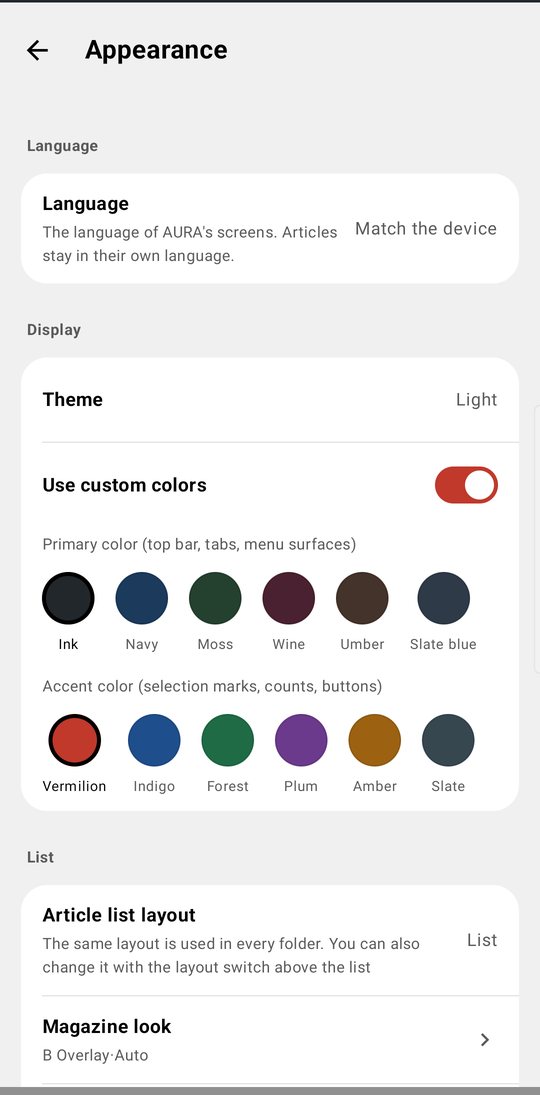
- Match device / Light (the default) / Dark / Black (pure black for OLED screens)
Custom colors
Turn on Use custom colors to choose two colors. While it's off, AURA uses the default ink and vermilion colors.
- Primary color — The top bar, tabs, and menu surfaces. Ink, Navy, Moss, Wine, Umber, Slate blue
- Accent color — Selection marks, counts, and buttons. Vermilion, Indigo, Forest, Plum, Amber, Slate
Text
Go to Settings > Read & listen > Text.
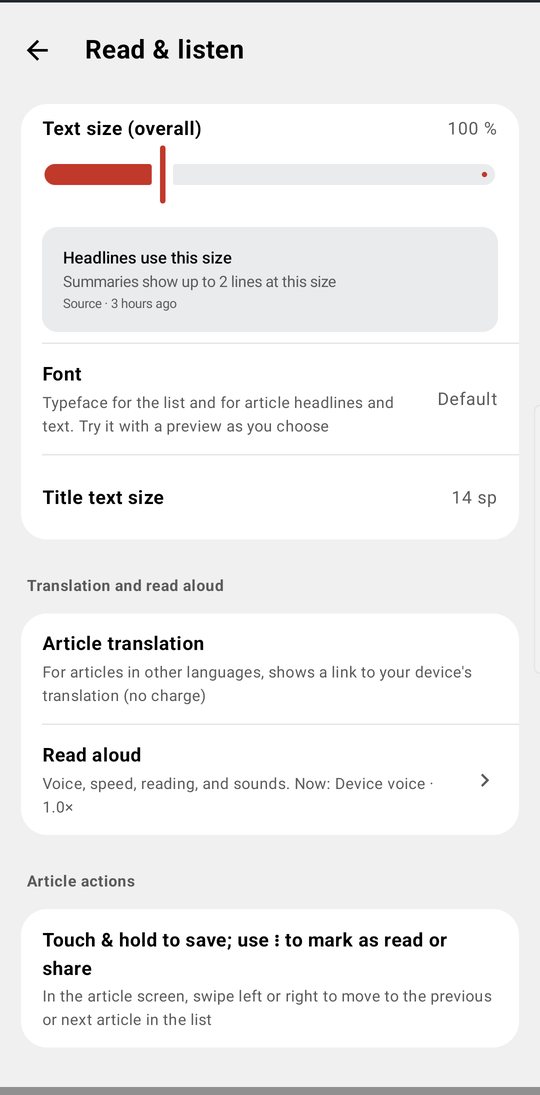
- Text size (overall) — 80–160% (in 5% steps). As you move the slider, the sample below updates right away
- Font — The typeface for the list and for article headlines and text. You can try each one with a preview as you choose (Mincho, your device's serif font, is here too)
- Title text size — 12–22 sp. This changes only the size of headlines in the list
You can also change the text size with aA at the top right of the article screen.