Folders
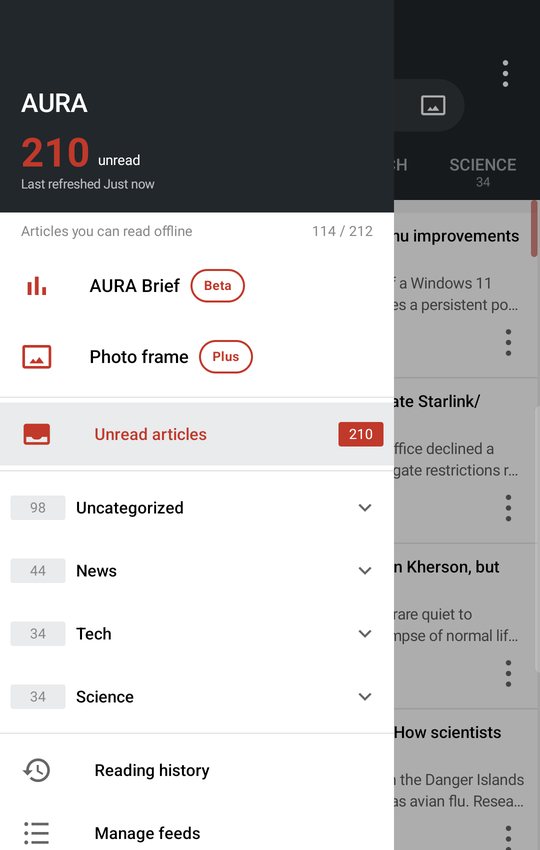
You can group feeds into folders. The tabs above the list are your folders. The drawer, which opens with ≡ at the top left, also lists feeds by folder (the folder you're viewing is shown expanded).
Folder actions
Touch & hold a folder tab, or open the folder and tap ⋮ at the top right of the list > Folder actions…, to open a sheet of shortcuts for that folder. Under the title you see “N feeds · N unread.”
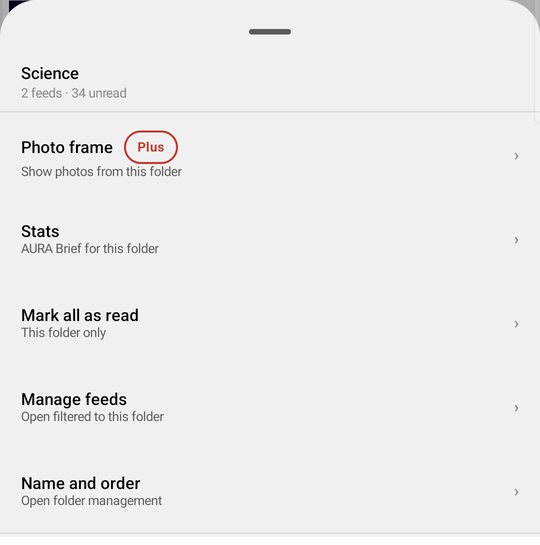
- Photo frame (AURA Plus) — Show photos from this folder
- Stats — AURA Brief for this folder
- Mark all as read — This folder only
- Manage feeds — Opens filtered to this folder
- Name and order — Opens Manage folders
When you're viewing a keyword feed, these become Stats for this word and Settings for this feed.
Create, rename, and delete
In Manage feeds (list ⋮ > Manage feeds), tap ⋮ > Manage folders.
- Enter a name in New folder name and tap Create
- To rename a folder, tap ⋮ next to it > Rename, enter the new name, and tap OK
- To delete a folder, tap ⋮ next to it > Delete. AURA asks “Delete “…”?” and tells you “If you delete a folder, the feeds in it just move to Uncategorized.” Tap Delete to confirm
- Drag ≡ at the right edge to reorder folders
Deleting a folder doesn't delete its feeds. They move to Uncategorized.
Uncategorized
Feeds you add without choosing a folder go here. You can't rename or delete it. It always stays at the top of the drawer.
Put feeds in folders and move them between folders
Each feed can be in only one folder. There are three ways to move one:
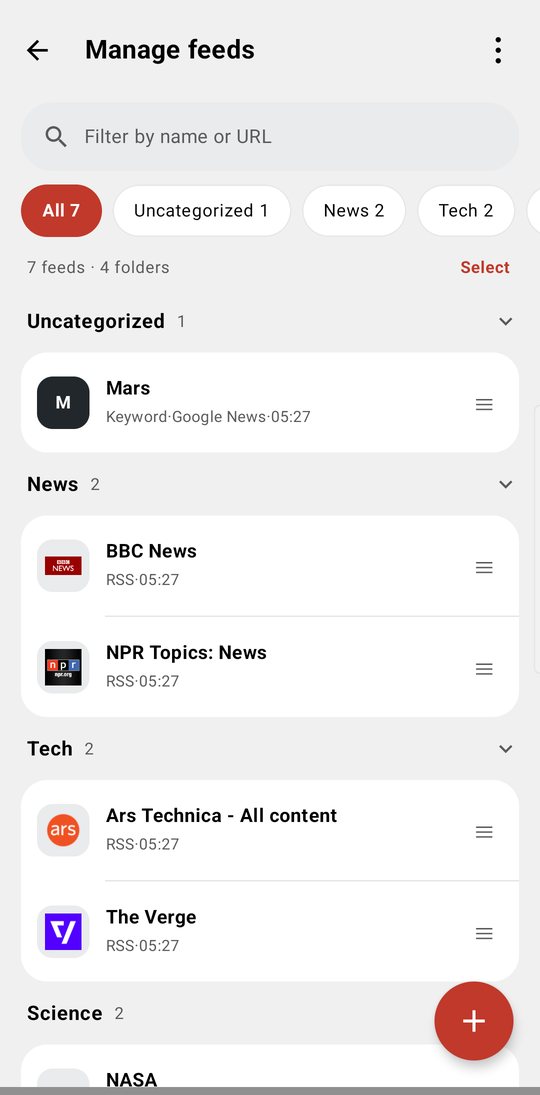
- Manage feeds — Touch & hold a row to pick it up. Drop it past a folder heading to move it into that folder (with ≡ at the right edge, you don't need to touch & hold). After moving, you see “Moved 1 to “…””
- Drawer — Touch & hold a feed and move your finger to reorder. Drag it past a folder heading to move it into that folder (you can drop it into a collapsed folder, too)
- Settings sheet (below) — Choose under Folder
In Manage feeds, you can reorder only when the search box at the top is empty and no filter is applied.
Settings sheet (touch & hold)
Touch & hold a feed and release without moving it to open its settings sheet. It's the same sheet in Manage feeds and in the drawer (in Manage feeds, tapping a row opens it too).
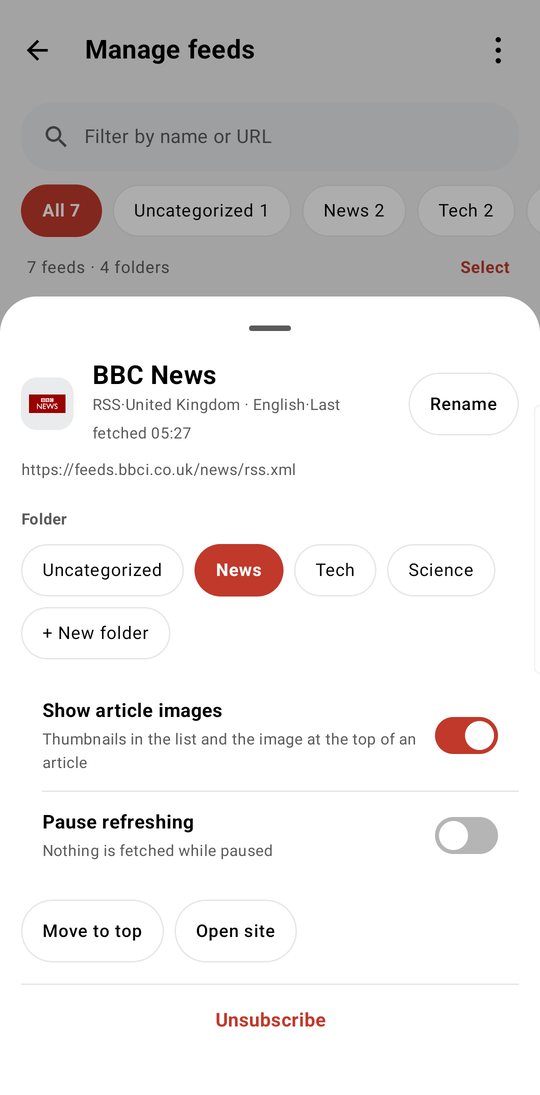
- Rename
- Folder — Choose a folder (you can also create one with + New folder)
- Show article images — Turn off to hide list thumbnails and the image at the top of articles (images inside the article text stay)
- Pause refreshing — Nothing is fetched while paused
- Move to top / Open site
- Unsubscribe
Keyword feeds also have:
- Where to search — The places to search besides Google News (see Add a feed)
- Include articles matched only by outlet name — Off by default. Articles where the keyword matched only a station or outlet name are folded below the list
- Stats for this word
Folder headings don't have a touch & hold menu (touch & hold picks them up so you can reorder folders).
Tab counts
The number under each tab is the article count for the view you've chosen (see Read and save). Turn on Settings > Appearance > Hide empty feeds and folders to hide ones with no articles from tabs and menus.