Add a feed
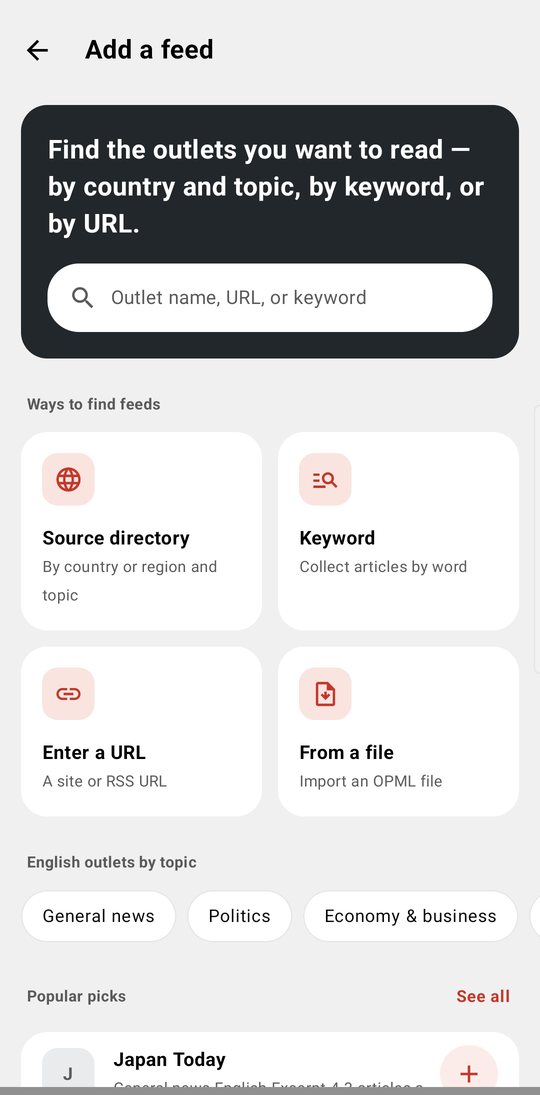
Everything starts from one screen: Add a feed. You can open it in any of these ways:
- In the article list, tap ⋮ at the top right > Add a feed
- In Manage feeds (list ⋮ > Manage feeds), tap the round + at the bottom right
- When you have no articles yet, tap Add a feed on the empty screen
At the top is a search box (Outlet name, URL, or keyword). As you type, AURA shows matching outlets and a shortcut to look for a feed at that URL or to collect that word as a keyword. Below it, Ways to find feeds shows four options.
| Way | What it does |
|---|---|
| Source directory | Choose from the sources built into the app, by country or region and topic |
| Keyword | Collect articles by word from Google News |
| Enter a URL | Subscribe from a site URL or an RSS / Atom URL |
| From a file | Import an OPML file |
Further down, English outlets by topic takes you straight to the outlets for a topic, and Popular picks shows a few outlets you haven't subscribed to yet (See all opens Source directory).
The first time you open AURA
Start by adding a feed offers a few English outlets: NPR News, BBC News, Ars Technica, The Verge, and NASA. None are selected at first, so tap the ones you want. You can also enter a word under Follow keywords (Free allows 3). Then tap Start AURA with N feeds, or Start without adding feeds. You can add feeds anytime later with Add a feed.
From an RSS or Atom URL
Tap Enter a URL, enter the URL, and tap Find (while the box is empty, the button is Paste). Either a site URL or an RSS URL works. AURA finds the feed for you. While it looks, you see “Looking for a feed… (up to 25 seconds).”
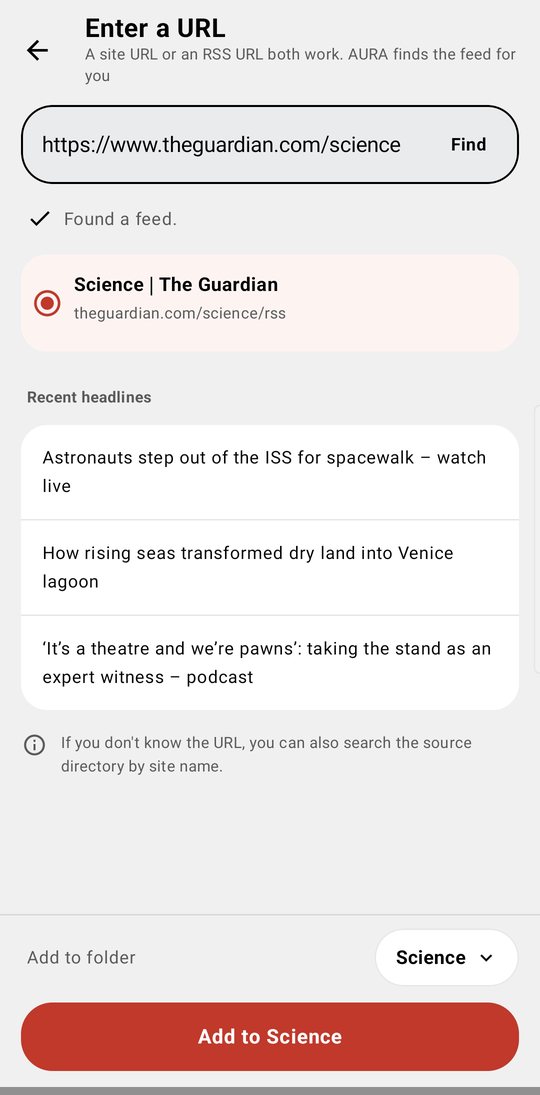
- If it finds one, you see Found a feed. If it finds more than one, choose which one to subscribe to
- Recent headlines shows what the feed has been sending
- Choose the folder under Add to folder at the bottom, then tap Add to …
Older sources that start with http:// work too (if https:// connects, AURA tries it first and switches to it).
To hide list thumbnails and the image at the top of articles for a feed, turn off Show article images in its settings sheet after you add it (see Folders).
From a keyword
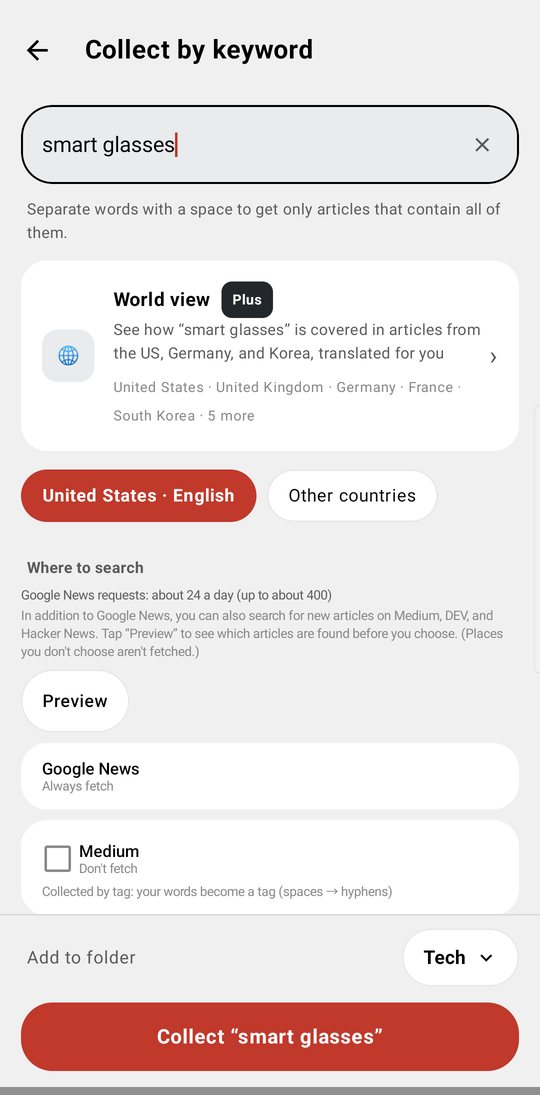
Tap Keyword to open Collect by keyword. Enter a word, choose the folder under Add to folder at the bottom (by default, a folder named Keyword), and tap Collect “…”. AURA subscribes to the Google News search results for that word. Separate words with a space to get only articles that contain all of them. In the list and the drawer, keyword feeds have a keyword mark, so you can tell them apart from URL feeds.
You can also open Collect by keyword from Search (🔍 at the top of the list): in the results, tap Subscribe to this word.
Keywords use Google News for your country. The chip below the box shows the country and language. You can change the default in Settings > Collect > News edition for keywords.
Where to search
Google News is always included. When the edition is in English, you can also choose these places (all are off by default):
- Medium — collected by tag: your words become a tag (spaces → hyphens)
- DEV — collected by tag, the same way
- Hacker News — stories whose title contains your words
With the Japan edition (Japanese), the places you can choose are note, Zenn, and Qiita instead.
Tap Preview to see which articles are found before you choose. Places you don't choose aren't fetched.
Free accounts can have up to 3 keyword feeds. The 4th and later are an AURA Plus feature. If you have 4 or more on a free account, AURA refreshes only your 3 oldest. The rest are paused, not deleted. Searching Google News in other countries (Other countries) and World view (how a word is covered in other countries, translated for you) are also AURA Plus features.
Google News topics
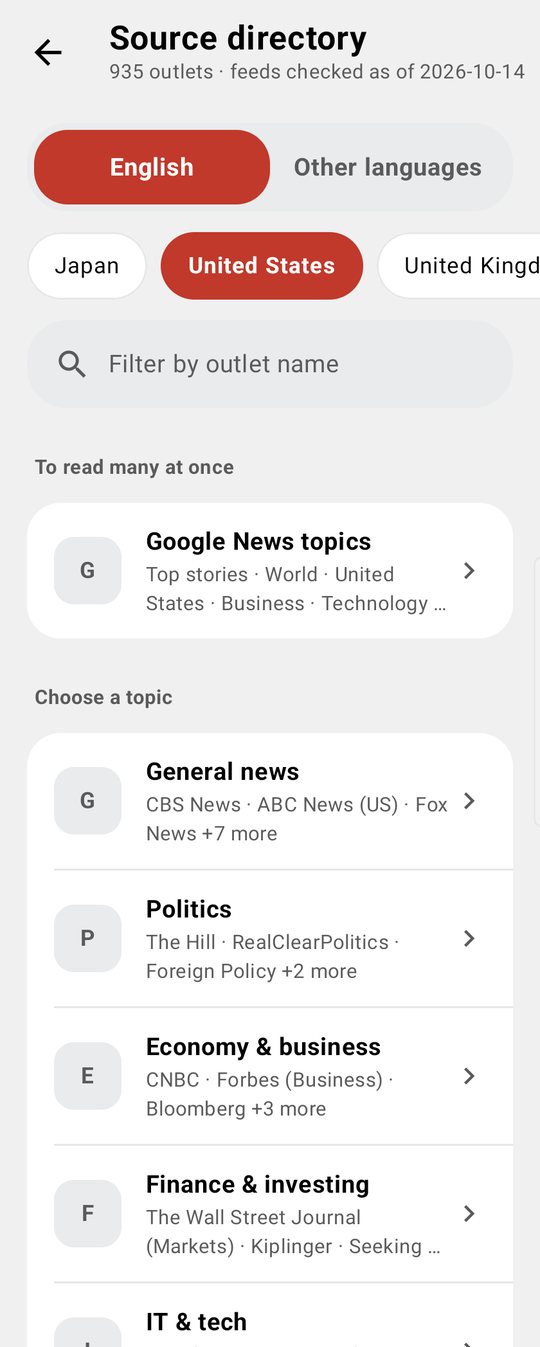
In Source directory, on the English tab, To read many at once has Google News topics: the official topic feeds from Google News (top stories, world, business, technology, and more). Tap one to subscribe. Feeds you already have show Subscribed.
Source directory
If you don't want to look up URLs, tap Source directory. Switch between English and Other languages at the top, choose a country or region, then choose a topic and an outlet. The directory is built into the app, so choosing doesn't send any requests.
In a topic's outlet list, check the outlets you want, then tap Add N to … at the bottom. Select all (checks every outlet in the list that you haven't subscribed to) is an AURA Plus feature.
Some sources show Not sent to AI. By agreement with the publisher, articles from these outlets are never sent to AI or used to train AI. They are also left out of audio briefings and deep dives in reports. You can still read them, have them read aloud, and count them on your device.
If you run a source and want it listed in the directory, see Listing your source.
After you add a feed
Before adding, choose where it goes under Add to folder at the bottom of the screen. Tap an existing folder, or tap + New folder and enter a name. AURA suggests one for you: the folder you came from, a folder whose name matches the topic, or a new folder named after the topic. If none of these fit, it goes to Uncategorized.
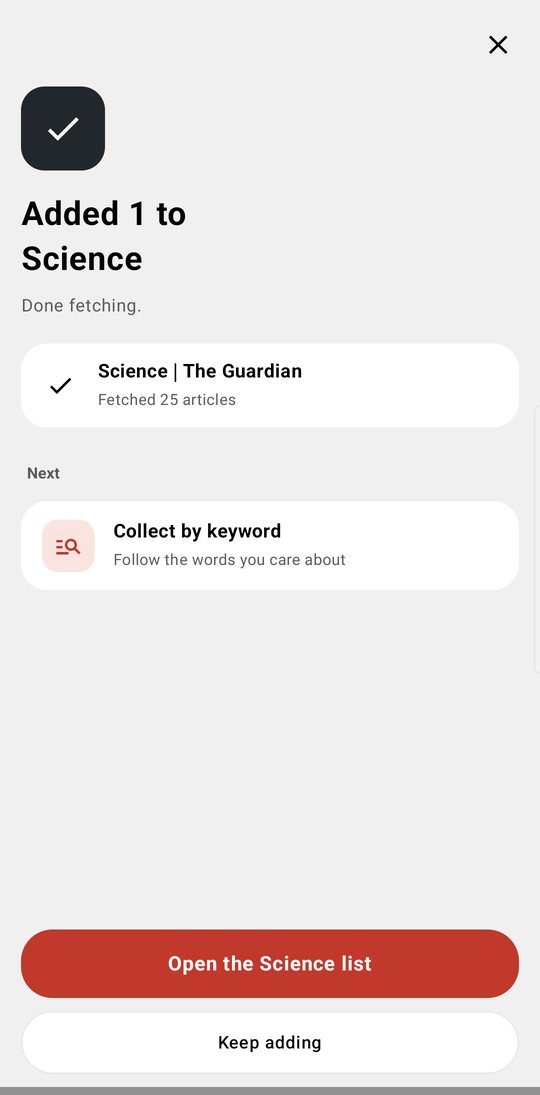
Then tap Add to …. AURA starts fetching the first articles. You can switch to another screen while this finishes. On the screen that follows (“Added N to …”), tap Open the … list to read, or Keep adding to add more. Under Next, you can also See more outlets in the same topic or Collect by keyword.
From text you select in an article
Touch & hold a word in the article text to select it. Add to keywords appears in the menu.
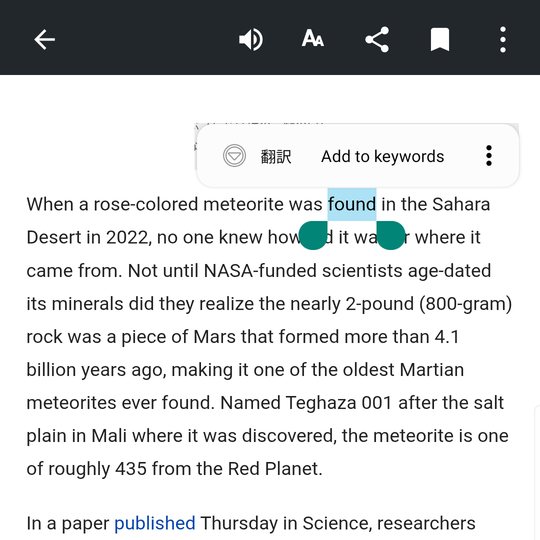
Tap it to open Collect by keyword with the text you selected already in the box. Fix it if needed, choose the folder under Add to folder, then tap Collect “…”.
- Spaces and line breaks around the selected text, and quotation marks at both ends, are removed
- If you already have the same keyword feed, AURA shows ““…” is already registered” instead of opening the screen
- You can't add text that is only spaces or longer than 50 characters
The keyword feed limit (up to 3 on a free account, unlimited with AURA Plus) is the same as in “From a keyword” above. If you already have 3 on a free account, you see AURA Plus information instead of Collect by keyword.
From text you select in other apps
When you select text in Chrome and other apps, the menu (inside ⋮) also shows Add to AURA keywords.
Tap it, and AURA opens Collect by keyword with the text you selected already in the box. Choose the folder and tap Collect “…”. Your selected text in the other app isn't changed.
To remove it from the menu, turn off Show “Add to AURA keywords” in Settings > Collect (on by default).
Subscribe with Share from other apps (YouTube and more)
In your browser or the YouTube app, tap Share > Subscribe with AURA on the page you're viewing. AURA opens Enter a URL with what you shared and starts looking for a feed right away.
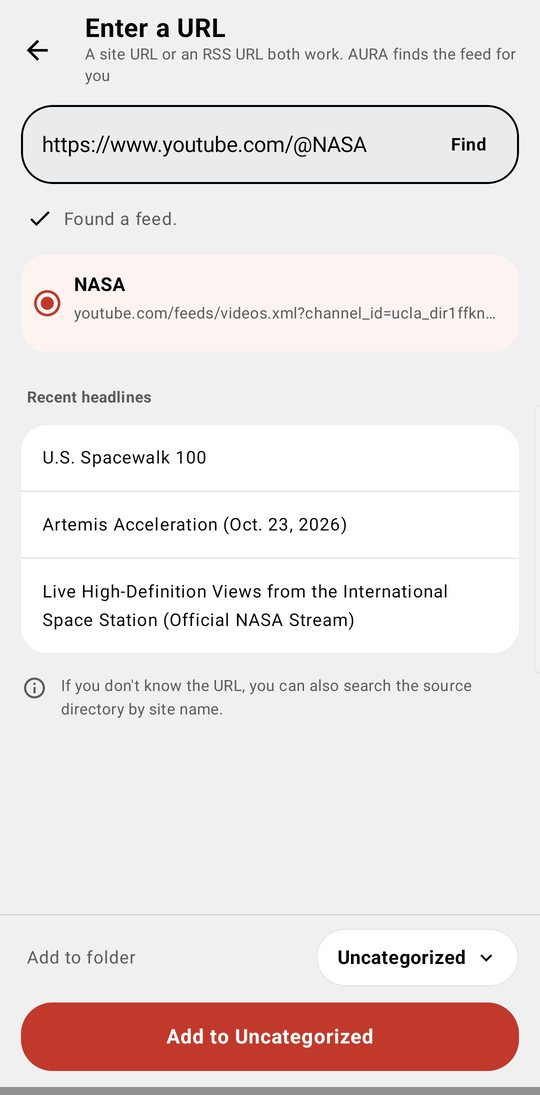
- YouTube — Share a video, a channel (including
@nameURLs), or a playlist page to subscribe to that channel's or playlist's RSS feed - Other sites — AURA looks for an RSS feed in the page. If it finds more than one, choose which one to subscribe to
When AURA shows Found a feed., check Recent headlines, choose the folder under Add to folder, and tap Add to …. If you see “Couldn't find a feed.”, tap Search the source directory by site name.
Sharing and entering a URL in Enter a URL look for the feed in the same way.
Import and export with OPML
In Manage feeds, tap ⋮ > Import OPML or Export OPML. You can also import from From a file in Add a feed.
- Import OPML — Bring in an
.opml/.xmlfile exported from another reader. On a free account, keyword feeds are imported only up to your free limit (3, minus the ones you already have). The rest aren't imported (AURA Plus imports them all) - Export OPML — Save your current feed list (you choose where to save it)
AURA also backs up your feed list on your device once a month (up to 6 months).
Clean up feeds that can't load
If some feeds aren't loading, the top of the list shows “N sources couldn't be refreshed” (tap Details to see which ones and retry). In Manage feeds:
- Tap Can't load N (with a ⚠ mark) at the top to open Feeds that can't load. There you can tap Try N again or Unsubscribe from N at once
- ⋮ > Unsubscribe from N that can't load unsubscribes from all of them at once, after you confirm